
Cookbook / Coding assistants
JetBrains IDEs
Privatemode works with AI coding plugins in JetBrains IDEs (IntelliJ IDEA, PyCharm, CLion, etc.). The officially supported plugin is the JetBrains AI Assistant. One configuration covers every JetBrains IDE you use the plugin in, and no JetBrains AI subscription is needed.
Setting up the Privatemode proxy
Follow the API quickstart and choose Other languages to run the Privatemode proxy. Usually, it's advisable to enable prompt caching via --disable-prompt-cache=false.
Installing the AI assistant plugin
- Open Settings → Plugins → Marketplace.
- Search for AI Assistant and select Install.
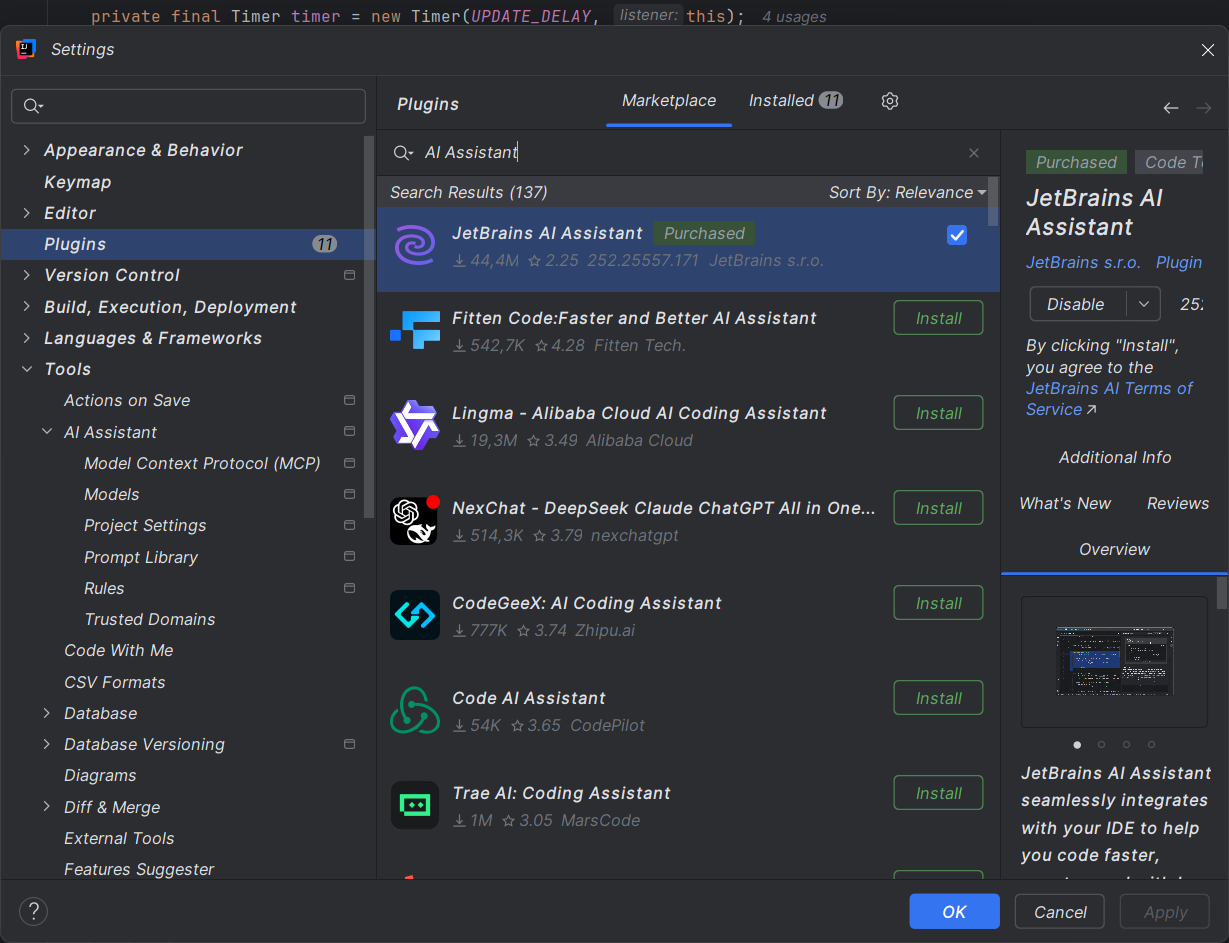
Configuring the AI assistant plugin
- Open Settings → Tools → AI Assistant → Providers & API keys.
- Add an OpenAI-compatible provider.
- Set URL to your Privatemode proxy, e.g.,
http://localhost:8080/v1. - Enter any placeholder as the API key. The proxy holds your API key.
- Switch on Tool calling if you use MCP servers.
- Click Test Connection. This will fetch the available models from Privatemode.
Model assignment
In the Models Assignment section on the same page, pick Privatemode models for core features and instant helpers, and in the AI Completion section for code completion.
- GLM-5.3 is the recommended default for JetBrains AI Assistant.
- If you want a lower-latency option or vision support, use GLM-5.3-Flash.
Keeping JetBrains AI deactivated
With your own provider configured, the assistant doesn't use the JetBrains AI cloud service unless you activate it. Leave JetBrains AI deactivated so that all requests go through Privatemode. JetBrains notes that some features may be unavailable with third-party models.